
 MonitorControl
Free and open source
Brightness and colour for every monitor, from Windows.
Your monitor's settings live behind a menu you drive with a small joystick on the back. MonitorControl puts them in a window, including your laptop screen.
One file. No installer, no account, no telemetry. Windows 10 or 11, 64-bit.
What it does
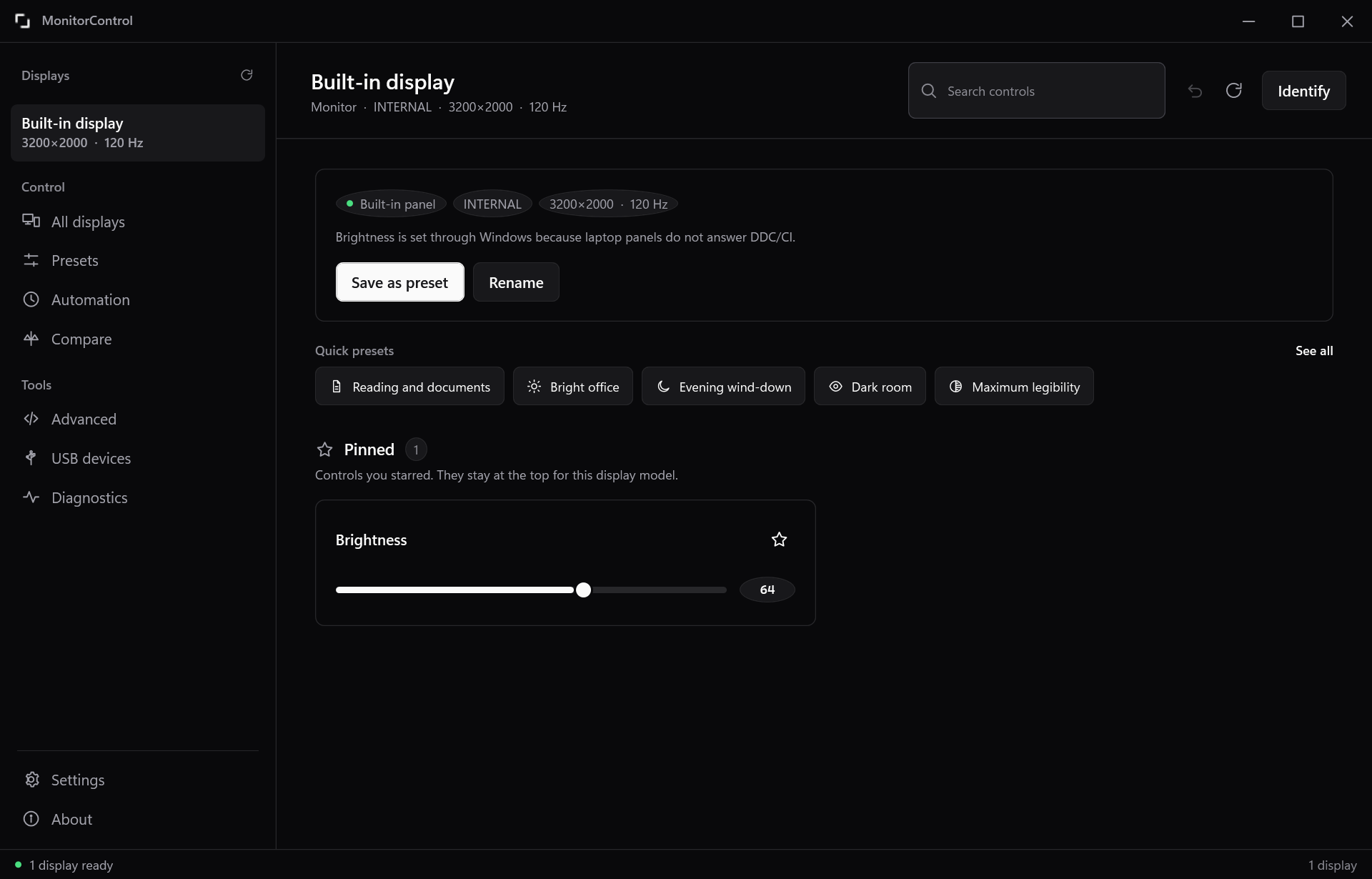
MonitorControl uses DDC/CI, a control channel that already runs through your video cable. Laptop screens have no such channel, so those go through the Windows backlight instead.
The controls your display really has
Brightness, contrast, colour temperature, RGB gains, sharpness, saturation, gamma, input source, volume, scaling and picture mode. Read from the hardware, so you only see what your panel actually supports.
Presets that fit any monitor
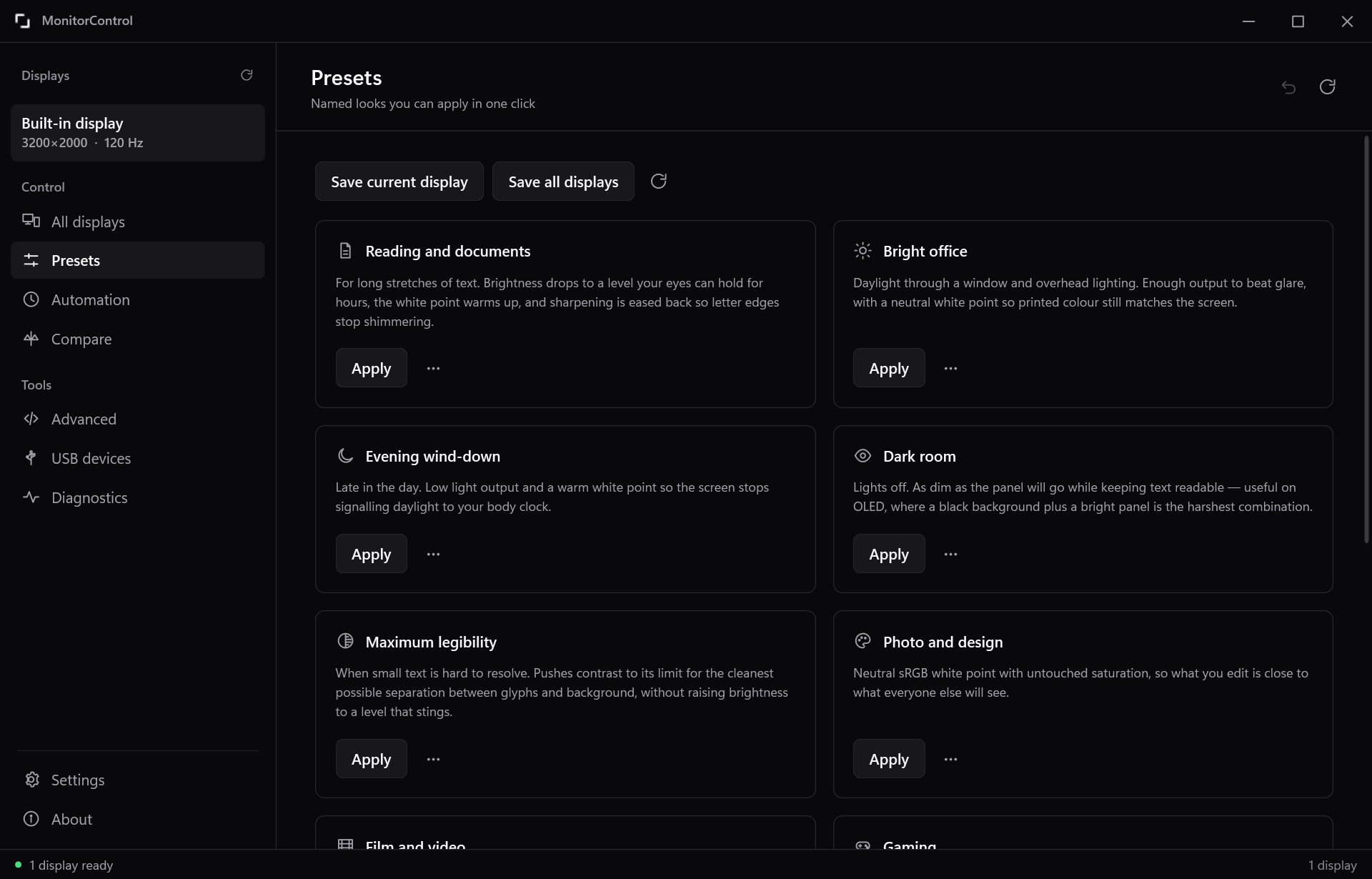
Built-in presets say what they want, such as brightness at 45% or a white point near 6500 K. Each display gets the closest setting it can do, so the same preset works on a laptop and on a gaming monitor.
Every display at once
One slider moves every screen that has the same control. Compare shows only the settings that actually differ, and matches them in one click.
Set it and forget it
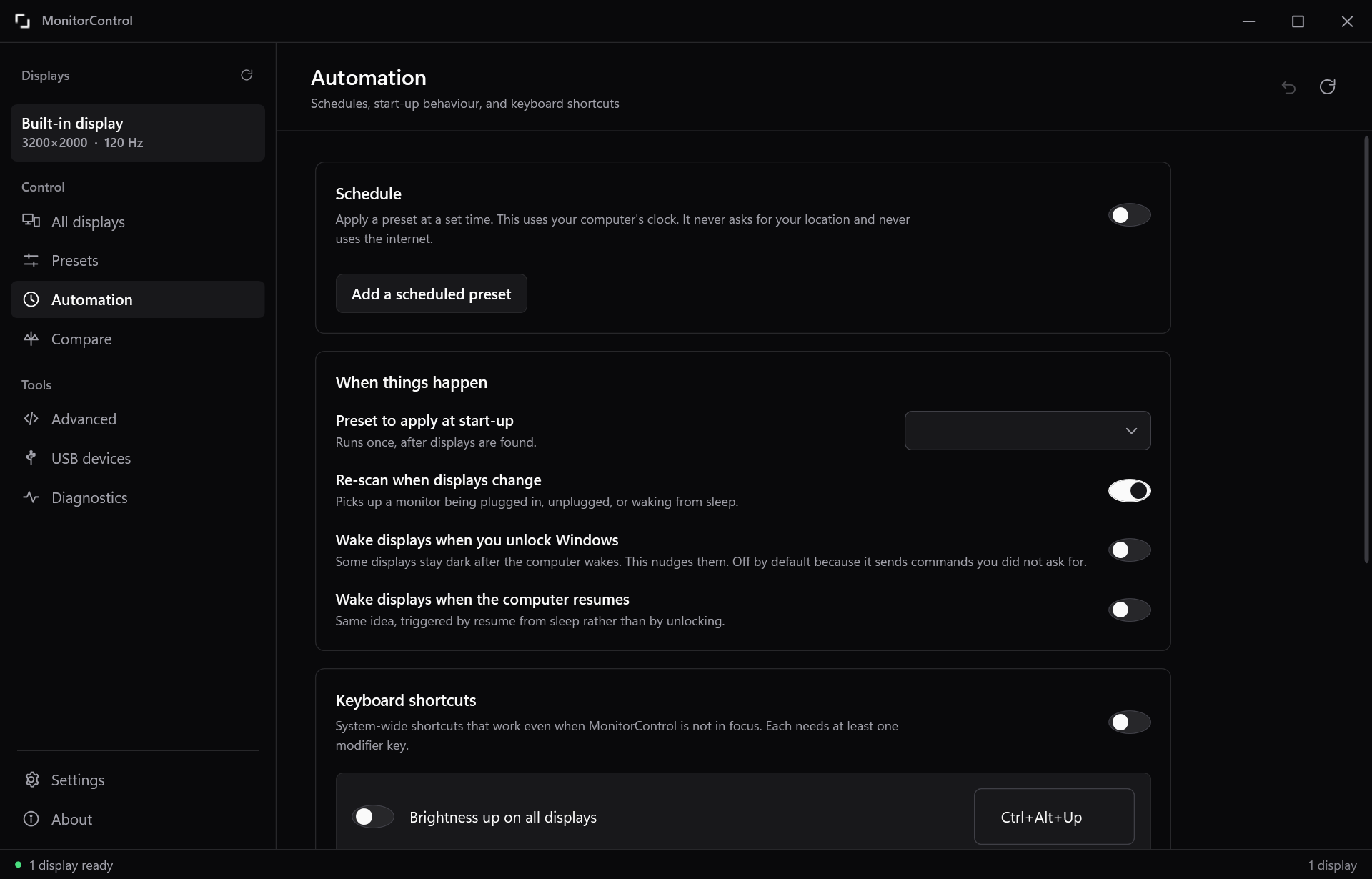
Apply a preset on a schedule or at start-up. Keyboard shortcuts for brightness that work anywhere. Start with Windows, straight to the tray.
One click from the tray
A small panel with brightness for every display and your first few presets, without opening the main window.
Tools for stubborn hardware
Deep scan reads all 256 control codes and writes nothing. Learn a setting works out what an unnamed control does by watching what changes when you press a button on the display.
Made for eyes, not just for monitors
Turning the brightness down is rarely the whole answer. Each preset changes several settings together and says when to use it.
- Reading and documents. Moderate brightness, a warmer white point, and less sharpening so letter edges stop shimmering.
- Evening wind-down. Low output and a warm white point, so the screen stops looking like daylight.
- Dark room. As dim as the panel goes while text stays readable. This helps most on OLED, where a bright panel against a black background is the hardest thing to look at.
- Maximum legibility. Contrast at its limit for the cleanest separation between text and background, without brightness that stings.
- Bright office, photo and design, film, gaming, presenting, and any preset you save yourself.
Let an assistant handle it
MonitorControl is also a Model Context Protocol server. Point an MCP client at the same file and an assistant can read and change your displays.
{
  "mcpServers": {
    "monitorcontrol": {
      "command": "C:\\Tools\\MonitorControl\\MonitorControl.exe",
      "args": ["--mcp"]
    }
  }
}
Nine tools. Controls are addressed by what they mean rather than by raw code, so the same instruction works on different hardware.
| Tool | What it does |
|---|---|
list_displays | Every connected display, its id, and which controls it has |
get_display | Full detail for one display, including every control and its range |
get_control set_control | Read or change one control by name or raw code |
set_brightness | Set brightness as a percentage, on all displays or one |
list_presets apply_preset | Find and apply presets |
rescan_displays | Look again after plugging something in |
get_diagnostics | Hardware report, with serial numbers left out |
The server never touches the network. It runs over a local pipe and only starts when your client asks for it. Write access is a switch you control. Power controls are off by default, so an assistant cannot switch off the screen you are reading.
Every setting, with a reason
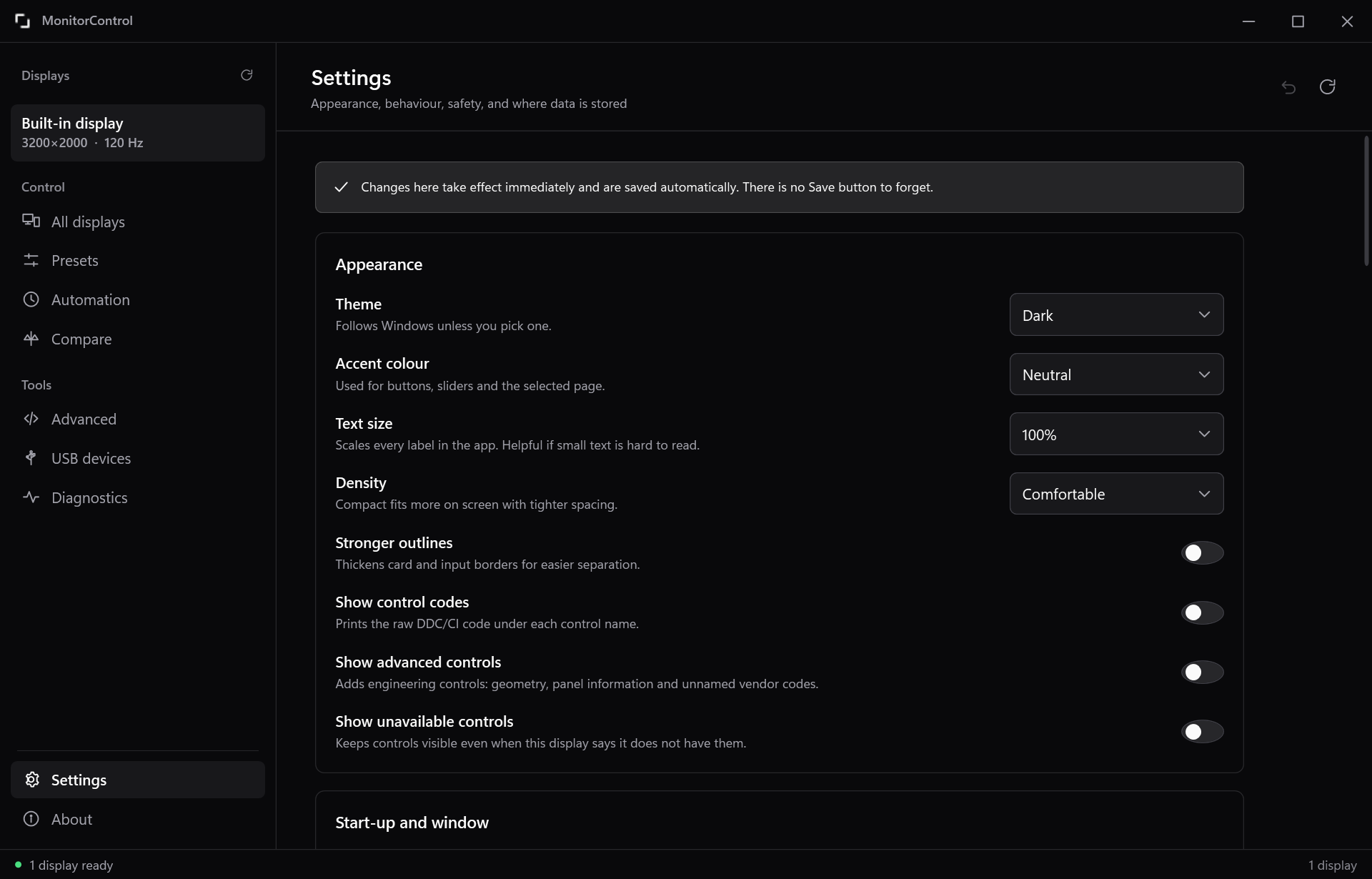
Theme, accent, text size and spacing. Timing for slow displays. Safety switches. Where your data lives. Changes apply and save as you make them, so there is no Save button to forget.
What it does not do
An app that changes your screen brightness has no reason to phone home.
No network access
No telemetry, no analytics, no account, no update check. There is no network code in the app at all.
Six files, all yours
Settings, presets, labels, wake methods, a cache and logs. All under your own profile, listed inside the app, with a button to open the folder. Serial numbers are hashed and never stored in the clear.
Nothing left behind
No service, no driver, no background program you did not ask for. Portable mode keeps everything next to the app.
On safety. Display firmware is undocumented, and a wrong value sent to an unknown control can reset a panel or switch it off. So the app never writes while exploring, unknown codes stay read only until you identify them yourself, values are never guessed, and every change is read back from the hardware before the app says it worked.
Get it
Download and run. Windows will warn about an unknown publisher because the build is not signed. The source is here if you would rather build it yourself.
If a display does not respond
Nearly always, DDC/CI is switched off in the display's own menu, because many makers ship it that way. Look for DDC/CI, DDC or Monitor Control under Settings, System or Others. If that is not it, close any utility from the monitor's maker, since only one program can hold the channel at a time, and try a direct cable rather than an adapter. More troubleshooting